 Jump to content
 EN
EN
Invite a friend #5
1/9
Team Contracts 2026
2/9
Tanki Online V-LOG: Episode 541
3/9
Summer Major Rankings I 2026
4/9
Ice Age 2026
5/9
«Tanki and The Snow Trap» mini-game 2025
6/9
Magnum IC
7/9
Tanki Online V-LOG: Episode 540
8/9
Tanki Classic mass test
9/9


Invite a friend #5

Invite friends to the game and get rewards!
We are launching a new referral event! During this event, you can get rewards for inviting new players or players who stopped playing the game. Also, as the friends you’ve invited complete special missions, you will receive additional bonuses!
Dates: From January 30th 2 AM to March 16th 2 AM UTC
Let’s get into the details:
How to invite
IMPORTANT: The option to invite new players is only available to accounts created before the start of the event, January 30th 2 AM.
Referrals are players who you invited to the game.
You need to follow these steps to make a new player your referral:
STEP 1 Your rank should be at least Master Sergeant.
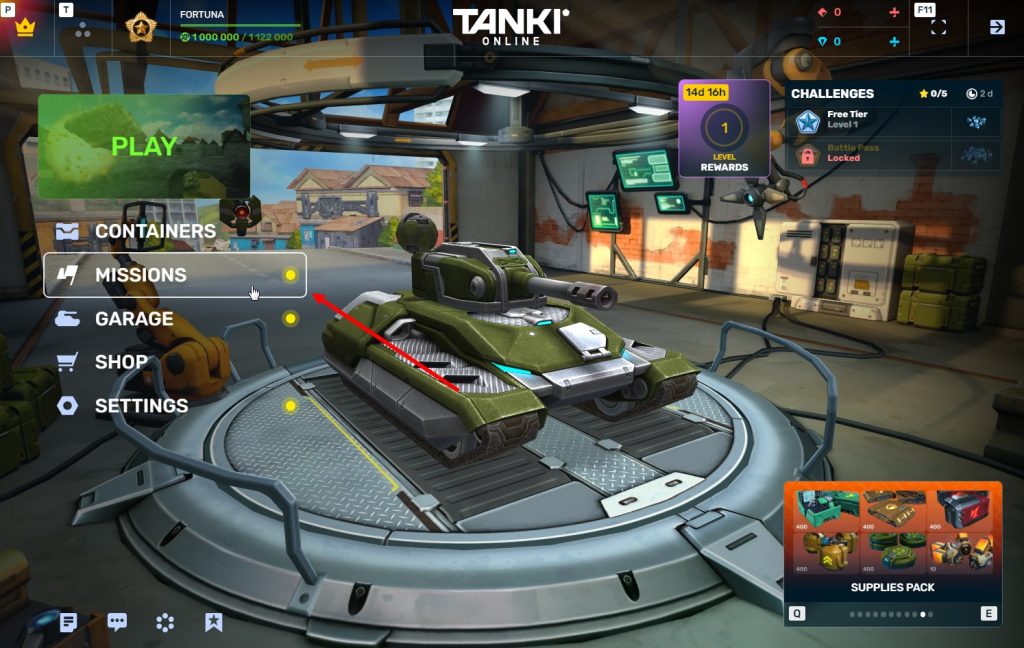
STEP 2 You need to enter the game and go to the Missions menu.
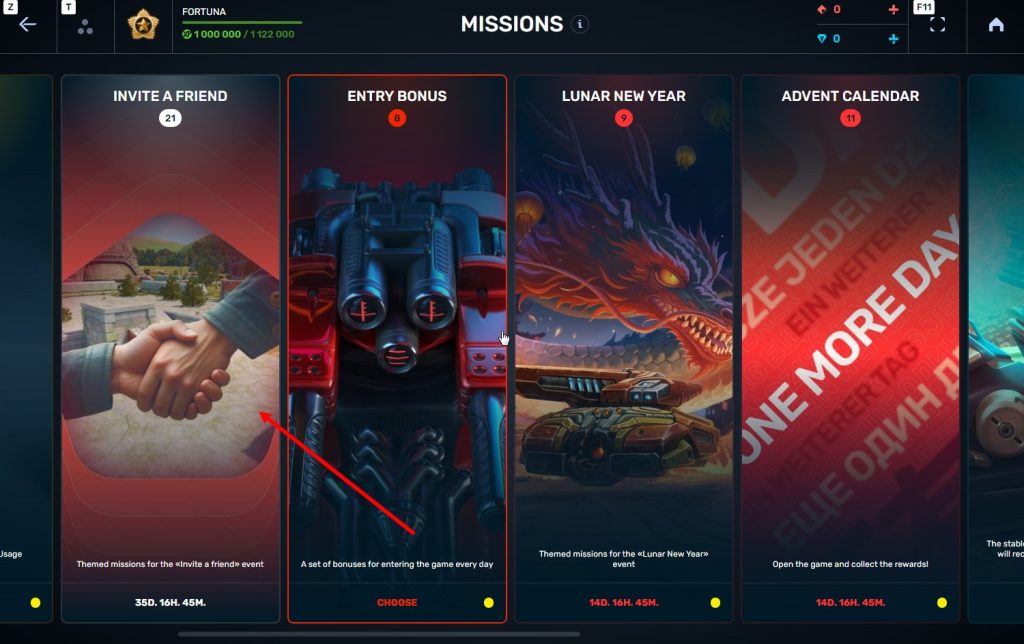
STEP 3 There, you need to open the special «Invite a friend» category of missions.
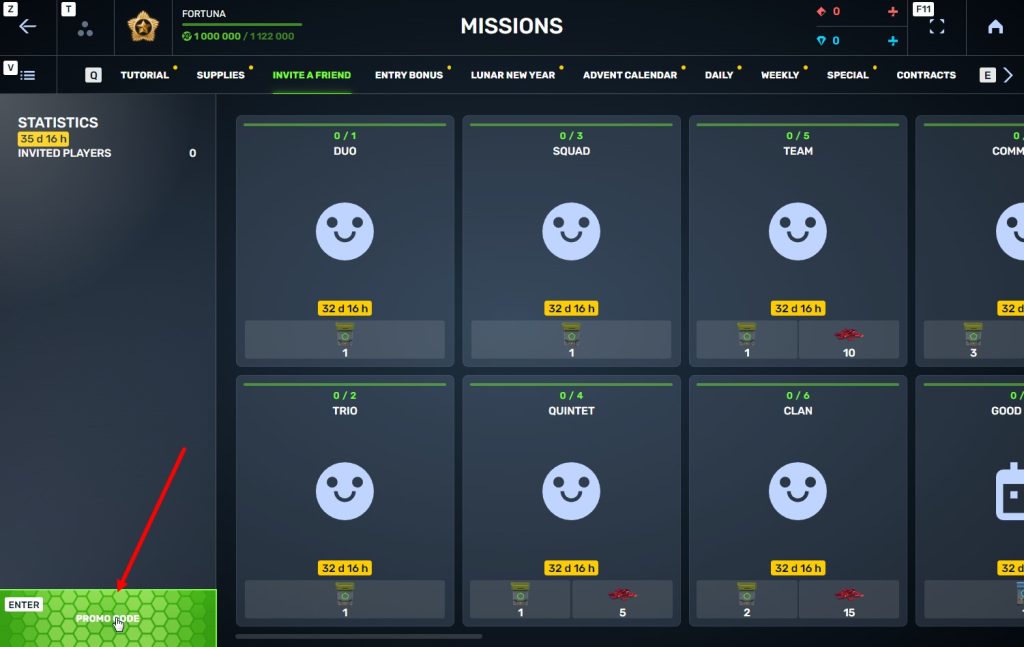
STEP 4 In that section, you need to generate a special invite promo code.
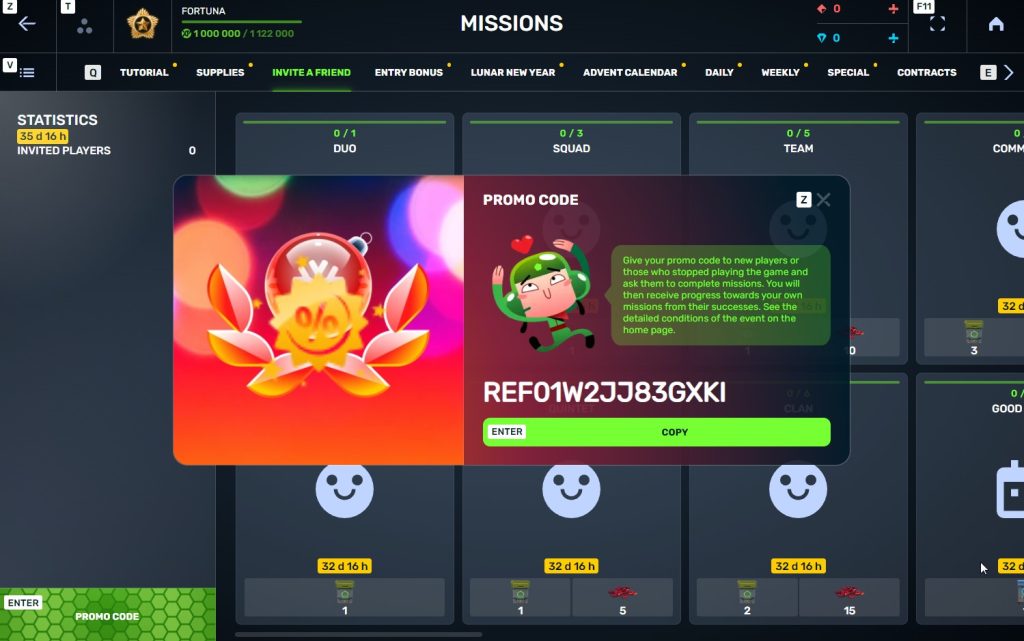
STEP 5 Share this Promocode with people you want to invite to the game and tell them how they can activate it (read below).
IMPORTANT: If you are a player who was invited to the game during this referral event, you cannot generate your own promo code to invite other players.
Who can become your referral
There are two types of players who can become your referrals:
- Players who created their account since January 30th 2 AM.
- Player who last entered the game before November 24th 2 AM UTC.
Pay attention to the fact that in order to activate an invite promo code, a player should have at least Private rank.
Important: A player who generated a promo code to send it to other players cannot activate their own promo code or a Promocode of any other player.
What do I get for inviting players?
- Once you generate your invite promo code, send it to your friends and acquaintances.
- In the special «Invite a friend» category of missions, you will get a set of special missions.
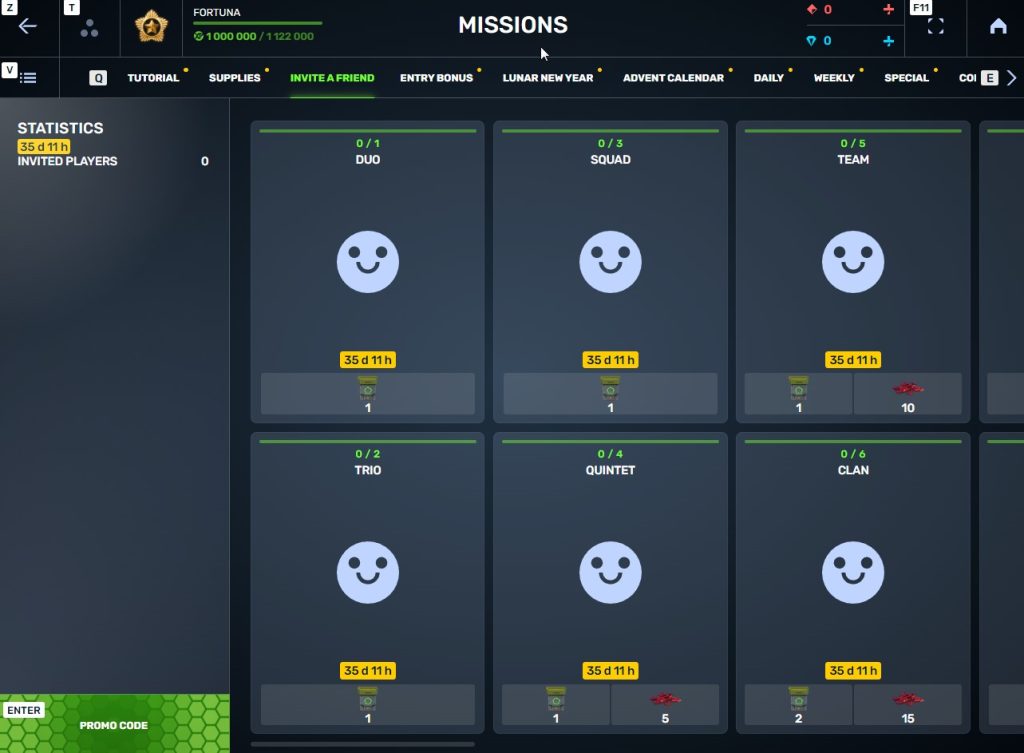
3. Once they activate your promo code, players who have been invited will also get a set of their own special missions in the «Missions from a friend» category. In your «Invite a friend» category you can track how your referrals complete their missions, and thus your missions get completed and you can claim rewards for the efforts of the players you have referred.
Missions for those who invite
There are two types of missions for inviting players. The first type gives you rewards for players who just activated your promo code. The second type gives you rewards once your invited players complete the required missions.
Bonuses for inviting players
Important: An invited player is counted towards mission progress only once they activate your promocode.
Duo
TASK
Invite 1 player to the game.
REWARD
×1
COMMON KEY
COMMON KEY

×100
EXPERIENCE POINTS
EXPERIENCE POINTS
Trio
TASK
Invite 2 players to the game.
REWARD
×1
COMMON KEY
COMMON KEY
×100
EXPERIENCE POINTS
EXPERIENCE POINTS
Squad
TASK
Invite 3 players to the game.
REWARD
×1
COMMON KEY
COMMON KEY
×100
EXPERIENCE POINTS
EXPERIENCE POINTS
Quintet
TASK
Invite 4 players to the game.
REWARD
×1
COMMON KEY
COMMON KEY
×100
EXPERIENCE POINTS
EXPERIENCE POINTS
×5
RUBY
RUBY
Team
TASK
Invite 5 players to the game.
REWARD
×1
COMMON KEY
COMMON KEY
×100
EXPERIENCE POINTS
EXPERIENCE POINTS
×10
RUBY
RUBY
Clan
TASK
Invite 6 players to the game.
REWARD
×2
COMMON KEY
COMMON KEY
×100
EXPERIENCE POINTS
EXPERIENCE POINTS
×15
RUBY
RUBY
Community
TASK
Invite 7 players to the game.
REWARD
×3
COMMON KEY
COMMON KEY
×100
EXPERIENCE POINTS
EXPERIENCE POINTS
×40
RUBY
RUBY
Bonuses for efforts of your referrals
Important: An invited player is counted towards mission progress only once they activate your promocode and complete the required referral missions.
Good Start
TASK
Invited players completed 10 referral event missions
REWARD
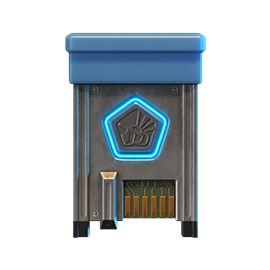
×1
RARE KEY
RARE KEY
×100
EXPERIENCE POINTS
EXPERIENCE POINTS
Makes Progress
TASK
Invited players completed 20 referral event missions
REWARD
×1
RARE KEY
RARE KEY
×100
EXPERIENCE POINTS
EXPERIENCE POINTS
Can Play Together
TASK
Invited players completed 30 referral event missions
REWARD
×1
RARE KEY
RARE KEY
×100
EXPERIENCE POINTS
EXPERIENCE POINTS
×5
RUBY
RUBY
They Trust You
TASK
Invited players completed 40 referral event missions
REWARD
×1
RARE KEY
RARE KEY
×100
EXPERIENCE POINTS
EXPERIENCE POINTS
×10
RUBY
RUBY
Social Butterfly
TASK
Invited players completed 50 referral event missions
REWARD
×1
RARE KEY
RARE KEY
×100
EXPERIENCE POINTS
EXPERIENCE POINTS
×15
RUBY
RUBY
Influencer
TASK
Invited players completed 60 referral event missions
REWARD
×2
RARE KEY
RARE KEY
×100
EXPERIENCE POINTS
EXPERIENCE POINTS
×20
RUBY
RUBY
Celebrity
TASK
Invited players completed 80 referral event missions
REWARD
×3
RARE KEY
RARE KEY
×100
EXPERIENCE POINTS
EXPERIENCE POINTS
×60
RUBY
RUBY
Full Pack
TASK
Invited players completed 1 referral event supermission
REWARD
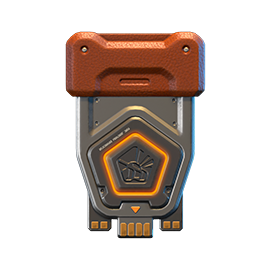
×1
EPIC KEY
EPIC KEY
×100
EXPERIENCE POINTS
EXPERIENCE POINTS
Aspiring Expert
TASK
Invited players completed 2 referral event supermissions
REWARD
×1
EPIC KEY
EPIC KEY
×100
EXPERIENCE POINTS
EXPERIENCE POINTS
×5
RUBY
RUBY
Forward to Victory
TASK
Invited players completed 3 referral event supermissions
REWARD
×1
EPIC KEY
EPIC KEY
×100
EXPERIENCE POINTS
EXPERIENCE POINTS
×10
RUBY
RUBY
Good Mentor
TASK
Invited players completed 4 referral event supermissions
REWARD
×1
EPIC KEY
EPIC KEY
×100
EXPERIENCE POINTS
EXPERIENCE POINTS
×15
RUBY
RUBY
Thunderstorm of Matchmaking
TASK
Invited players completed 5 referral event supermissions
REWARD
×1
EPIC KEY
EPIC KEY
×100
EXPERIENCE POINTS
EXPERIENCE POINTS
×20
RUBY
RUBY
Preparing for eSports
TASK
Invited players completed 6 referral event supermissions
REWARD
×2
EPIC KEY
EPIC KEY
×100
EXPERIENCE POINTS
EXPERIENCE POINTS
×60
RUBY
RUBY
Professional Referrer
TASK
Invited players completed 7 referral event supermissions
REWARD
×3
EPIC KEY
EPIC KEY
×700
RUBY
RUBY
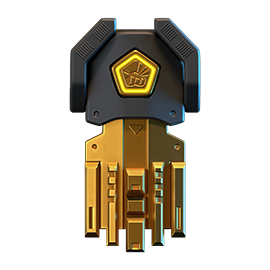
×1
LEGENDARY KEY
LEGENDARY KEY
How it works for referrals
Once you invite a friend and give them your promo code, your friend should do the following:
STEP 1 Create an account (or log into an existing one, if it meets the criteria)
STEP 2 Get the «Private» rank. It won’t take much time.
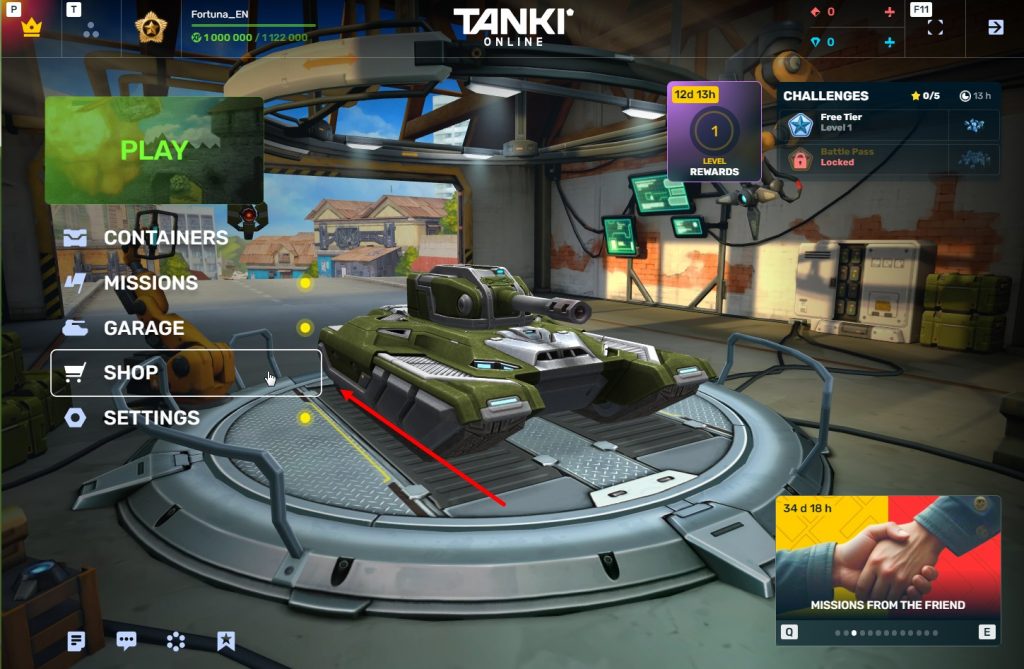
STEP 3 Enter the Shop
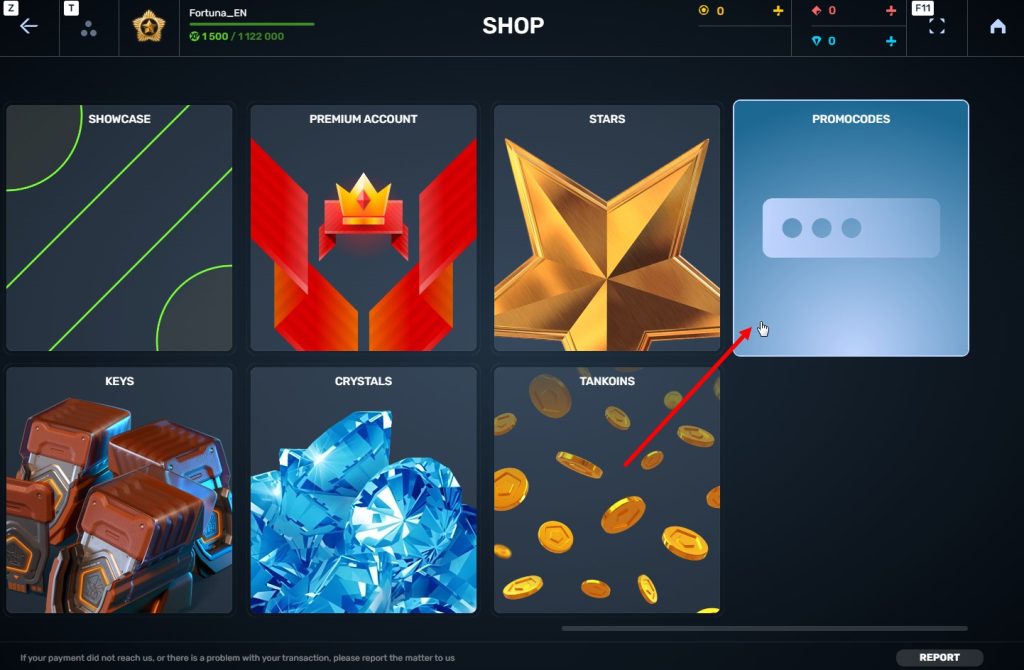
STEP 4 Go to the «Promocode» section
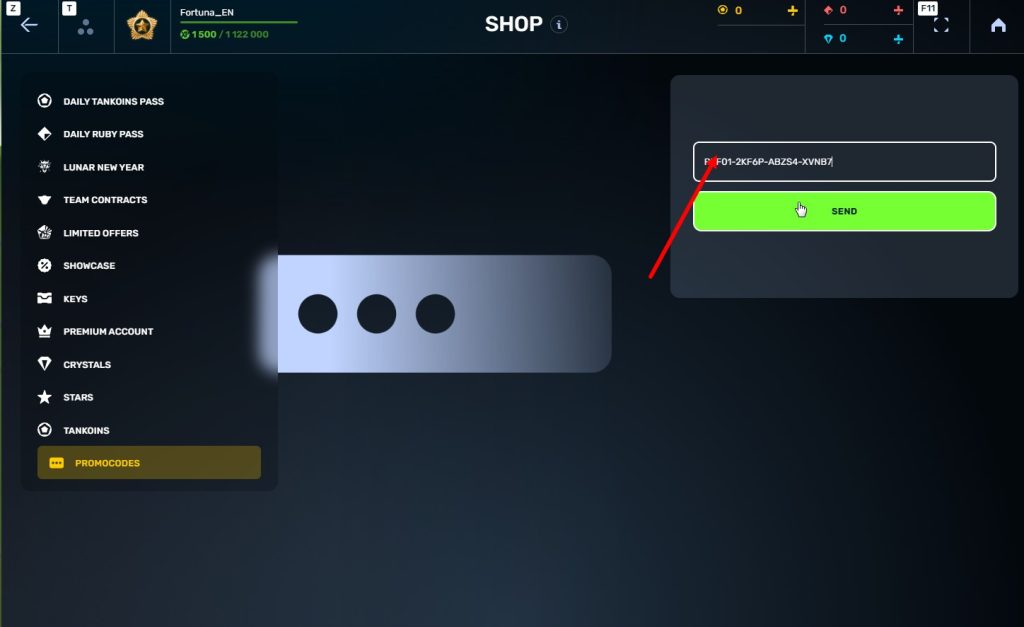
STEp 5 Activate the promo code
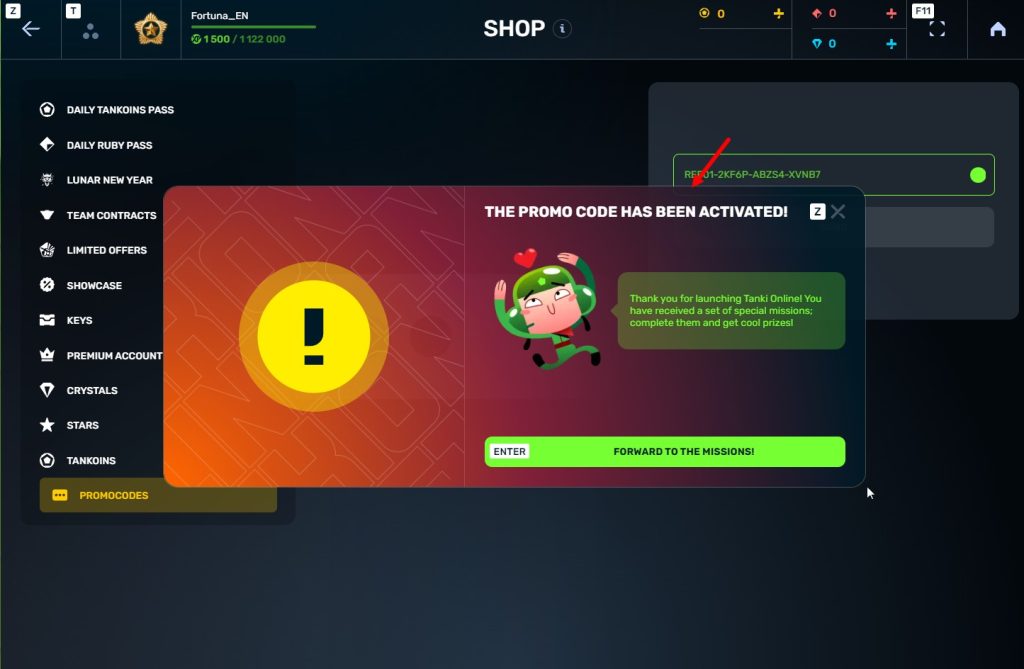
STEP 6 Press the «Forward to the missions!» button
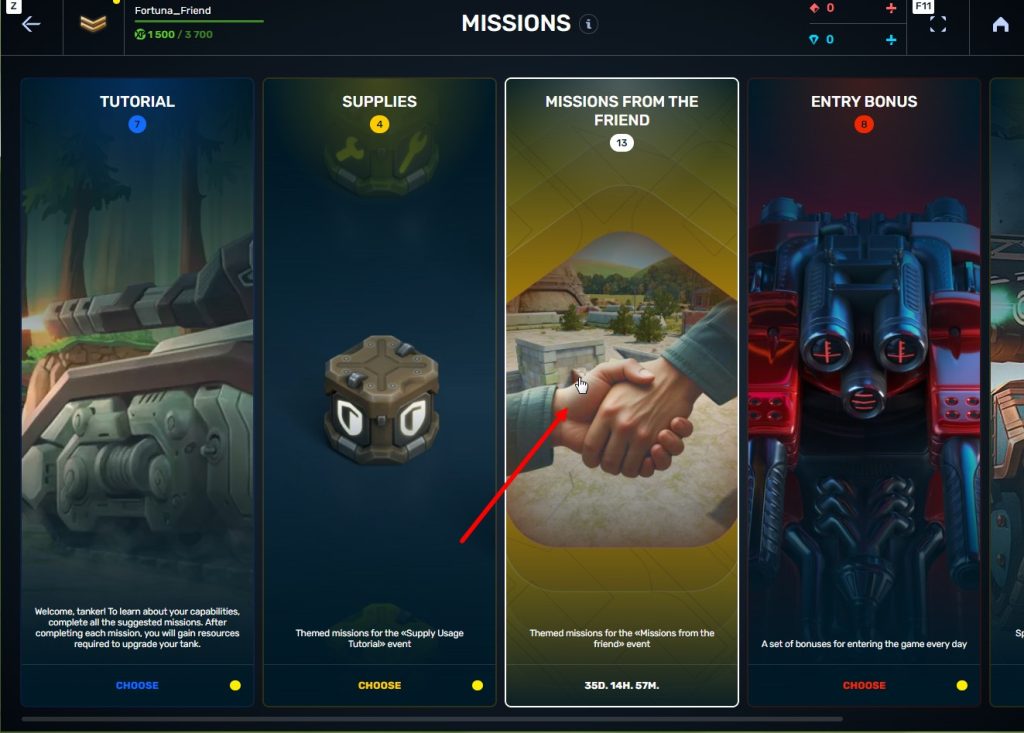
STEP 7 In the Missions menu, there will be a section called «Missions from the friend» with a set of special missions to complete
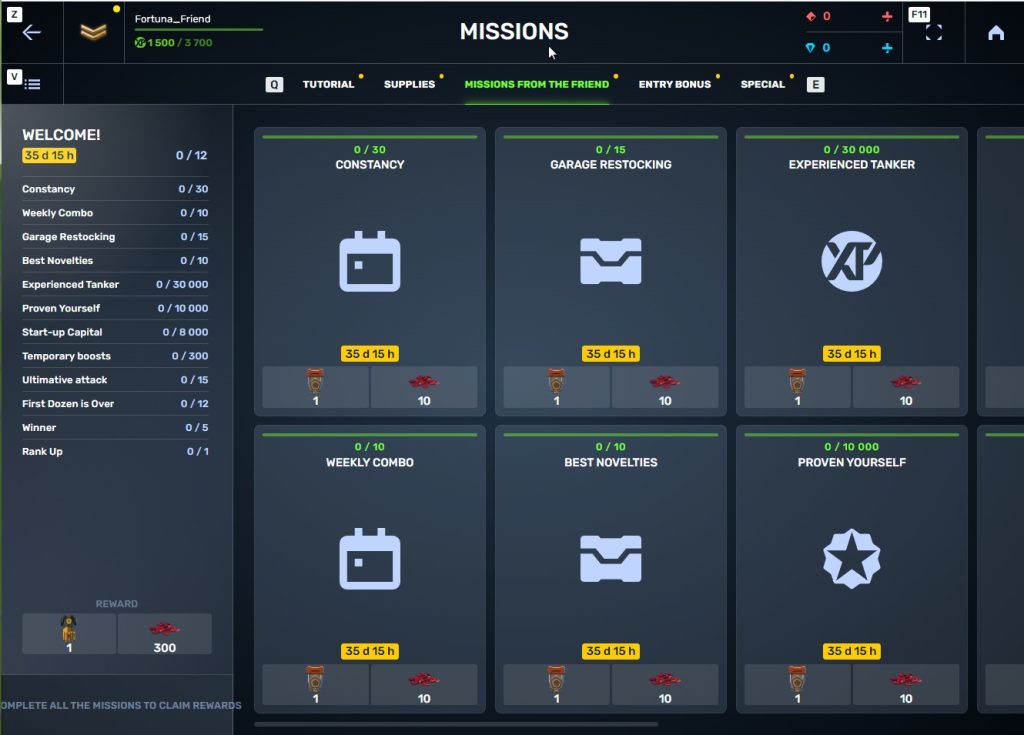
STEP 8 Complete the missions and claim the rewards
Important: During a referral event, a player can become a referral of only one player (activate only one referral promo code).
Bonuses for referrals for completing missions
WELCOME!
TASK
Supermission. Complete all referral missions.
REWARD
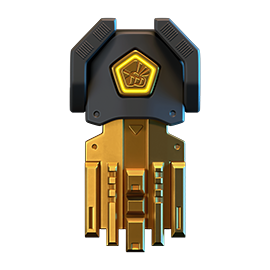
×1
legendary key
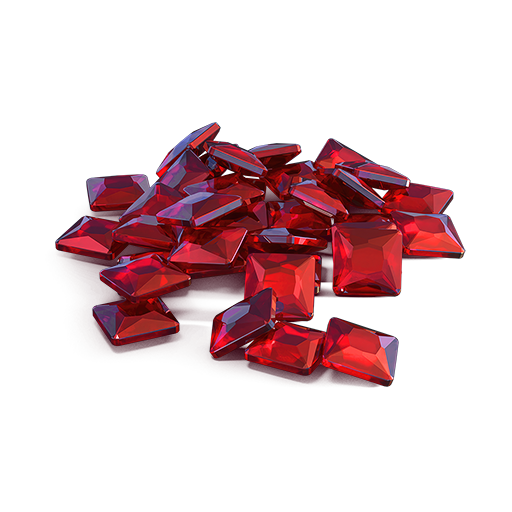
×300
ruby
CONSTANCY
TASK
Complete 30 daily missions.
REWARD
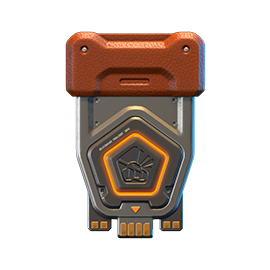
×1
epic key
×100
EXPERIENCE POINTS
EXPERIENCE POINTS
×10
ruby
WEEKLY COMBO
TASK
Complete 15 weekly missions.
REWARD
×1
epic key
×100
EXPERIENCE POINTS
EXPERIENCE POINTS
×10
ruby
GARAGE RESTOCKING
TASK
Open 15 Common Containers
REWARD
×1
epic key
×100
EXPERIENCE POINTS
EXPERIENCE POINTS
×10
ruby
BEST NOVELTIES
TASK
Open 10 Epic Containers.
REWARD
×1
epic key
×100
EXPERIENCE POINTS
EXPERIENCE POINTS
×10
ruby
EXPERIENCED TANKER
TASK
Earn 30 000 experience points.
REWARD
×1
epic key
×100
EXPERIENCE POINTS
EXPERIENCE POINTS
×10
ruby
PROVEN YOURSELF
TASK
Earn 15 000 reputation points.
REWARD
×1
epic key
×100
EXPERIENCE POINTS
EXPERIENCE POINTS
×10
ruby
START-UP CAPITAL
TASK
Earn 10 000 crystals.
REWARD
×1
epic key
×100
EXPERIENCE POINTS
EXPERIENCE POINTS
×10
ruby
TEMPORARY BOOSTS
TASK
Activate supplies 300 times.
REWARD
×1
epic key
×100
EXPERIENCE POINTS
EXPERIENCE POINTS
×10
ruby
ULTIMATIVE ATTACK
TASK
Use overdrive 15 times.
REWARD
×1
epic key
×100
EXPERIENCE POINTS
EXPERIENCE POINTS
×10
ruby
FIRST DOZEN IS OVER
TASK
Finish 20 battles.
REWARD
×1
epic key
×100
EXPERIENCE POINTS
EXPERIENCE POINTS
×10
ruby
WINNER
TASK
Be in the winning team of 5 battles.
REWARD
×1
epic key
×100
EXPERIENCE POINTS
EXPERIENCE POINTS
×10
ruby
RANK UP
TASK
Get a new rank.
REWARD
×1
epic key
×100
EXPERIENCE POINTS
EXPERIENCE POINTS
×10
ruby
You can track the progress of completing missions by your referrals in the «Statistics» column of the «Invite a friend» category in missions.
Invite friends and get rewards!
Team Contracts 2026

Team Contracts return!
Nothing unites players like a team, because together we are strong!
Nothing unites players like a team, because together we are strong!
«Team Contracts» is an event aimed at playing in teams, completing missions, and receiving valuable rewards. The more united and cohesive your team is, the greater your chances of winning.
The website will become available once the event starts on January 23rd.
How to participate
From January 23rd 2 AM, till February 12th 2 AM UTC, “Team Contracts” will be added into the game.
To participate, you need to purchase a special offer – “First Contract”, which includes the “Event Pass” required for participation.

Factions
Players who purchase the special offer will be assigned randomly into 1 of 4 factions:
Isindor

Twinserin

Ricopuff

Shaftlaw
A little bit of magic won’t hurt 🙂
Contracts

Contract
On each day starting from February 2nd, a new team contract will appear on the event page. A contract is a mission for all the faction members. It is available only for 24 hours.
In the game, participants will see the mission that they must complete.
GOLD HUNTER
TASK
Catch 3 gold boxes in matchmaking battles.
REWARD
×1
EPIC KEY
EPIC KEY
DELIVERY GUY
TASK
Capture 3 flags in matchmaking battles.
REWARD
×1
EPIC KEY
EPIC KEY
GRENADIER
TASK
Destroy 4 tanks using grenades in matchmaking battles.
REWARD
×1
EPIC KEY
EPIC KEY
NUCLEAR CATCH
TASK
Collect 3 nuclear energy boxes in matchmaking battles.
REWARD
×1
EPIC KEY
EPIC KEY
LEADER
TASK
Earn 3000 reputation points in matchmaking battles.
REWARD
×1
EPIC KEY
EPIC KEY
HAILSTORM OF STEEL
TASK
Destroy 30 tanks using Tesla turret in matchmaking battles.
REWARD
×1
EPIC KEY
EPIC KEY
CRYSTAL TYCOON
TASK
Earn 30000 crystals in matchmaking battles.
REWARD
×1
EPIC KEY
EPIC KEY
DEMONSTRATIVE SHOT
TASK
Destroy 30 tanks using critical damage in matchmaking battles.
REWARD
×1
EPIC KEY
EPIC KEY
AGAINST THE BOSS
TASK
Destroy 3 Juggernauts in matchmaking battles.
REWARD
×1
EPIC KEY
EPIC KEY
GRENADIER 2.0
TASK
Destroy 3 tanks using grenades in matchmaking battles.
REWARD
×1
EPIC KEY
EPIC KEY
Note
The percentage of players who complete a contract is taken into the count of each faction.
Each faction will receive points for completing missions every day.
The greater the proportion of faction members who have completed the mission, the more points you can get.
- 1st place — 200 points
- 2nd place — 150 points
- 3rd place — 100 points
- 4th place — 50 points
Note:
- Points are added after the game day ends.
- Points are added into the personal player inventory on the event page.
- To receive the points, a player must complete the contract.
Special offers
Another way to receive points is to purchase them in special offers on the event page. The more points you have, the more prizes you can get.
Points can be purchased until February 19th, 2 AM UTC.

Prizes
Let’s get to the most interesting part – prizes!
After the event ends and up until 2 AM UTC on February 19th, players can exchange their points earned from completing contracts or purchasing special offers for prizes in the event shop.
You just need to select prizes in an amount not exceeding the number of points in your inventory.
Available prizes:
1700 points
Legendary Key ×1
1500 points
Armadillo module

1000 points
Firebird Excelsior
1000 points
Freeze Excelsior

1000 points
Isida Excelsior

1000 points
Tesla Excelsior

1000 points
Hammer Excelsior

1000 points
Twins Excelsior

1000 points
Ricochet Excelsior

1000 points
Vulcan Excelsior

1000 points
Smoky Excelsior

1000 points
Striker Excelsior

1000 points
Thunder Excelsior

1000 points
Scorpion Excelsior

1000 points
Magnum Excelsior

1000 points
Railgun Excelsior

1000 points
Gauss Excelsior

1000 points
Shaft Excelsior
900 points
Crisis drone

500 points
Wasp Excelsior
500 points
Hopper Excelsior
500 points
Hornet Excelsior
500 points
Viking Excelsior
500 points
Crusader Excelsior
500 points
Hunter Excelsior
500 points
Paladin Excelsior
500 points
Dictator Excelsior
500 points
Titan Excelsior
500 points
Ares Excelsior
500 points
Mammoth Excelsior
50 points
Epic key ×1
50 points
Rare key ×3
50 points
COMMON key ×15
50 points
TSAR GRENADE ×1
Prizes are added to the account after some time following their purchases on the event page.
Have a good game and try to complete as many contracts as possible!
Tanki Online V-LOG: Episode 541
In today’s episode, we will be launching the Team Contracts event. We’ll also be introducing negative currency balance and discussing ongoing and upcoming events.
Summer Major Rankings I 2026

Winter Major 2025 is finished so we are ready to announce the first ranking tournament of the Summer season!
If you’re still unsure whether to participate in tournaments or not, then now is the time to decide! After all, as we said earlier, the eSport format is designed to simplify participation in eSports, which means that everyone has a chance to compete for impressive in-game rewards and even for real cash rewards.
Who knows, perhaps it will be you and your team that will achieve the highest results.
Who knows, perhaps it will be you and your team that will achieve the highest results.We also want to remind you that in order to simplify the search for players and teams, we have updated our eSports website and added a special section in which teams search for players, and players search for teams.
Tournament rules
- Ranks: First Sergeant — Legend
- The team consists of 7 players.
- In battle – 5 tankers from each team.
- Your garage doesn’t matter as battles are played in Sport mode.
- On the battlefield, in each team, hulls and turrets should not be repeated. For example, if you use Hornet and Ricochet, no one else from your team should be in the battle with Ricochet or Hornet.
- More detailed rules can be found on the tournament page on the eSports portal.
Prizes
- TMR points
- Unique «Impulse» paint
- 96,000 Rubies
- 88,000,000 crystals
- 2,835 epic keys
- 1,071 days of «Premium Pass»
Tournament dates
- Tournament registration will last from 13:00 UTC on January 12th till 17:00 UTC on January 25th.
- The first match will start on January 26th.
- The tournament will end before February 19th.
- The transfer is open and will last until 17:00 UTC on January 25th.
The tournament will be attended by 32 to 128 teams.
Almost immediately after the first rating tournament, we will announce the second one and after all the rating tournaments there will be a Major one. In the Major tournament, they will fight not only for in-game rewards, but also for real cash.
Go to the eSports portal, create your team, read the rules, register and get ready for the next rating tournament! And if you have any questions, visit our eSports Discord server, they will definitely help you.
See you on the battlefields and eSports broadcasts!
Ice Age 2026

Ice Age is starting in Tanki Online!
Get ready for tons of exciting in-game activities! This means that many exciting activities will be waiting for you in the game: cool game modes, generous 30% discounts, updated Epic Containers featuring augments for Railgun and Ares, as well as Railgun UT and Ares XT skins. There will also be an Advent Calendar, a new Elite Pass with the Excelsior augment for Hornet and a Legendary Key as rewards, plenty of special missions with valuable prizes, and festive decorations throughout the game.
Event dates: January 16th, 2 AM UTC — February 6th, 2 AM UTC.
Bots
During the event, bots in Matchmaking battles will be equipped with special equipment: Freeze, Gauss, Hammer, and Magnum, with the skins from the ICE series!
Now it will be easy to distinguish them from common players!
Discounts
Take advantage of the beneficial discounts from January 16th to January 19th.
All discounts start and end with the server restart at 2 AM UTC.
For 3 whole days, you will be able to obtain the following items with a 30% discount:
-30%
Shop (16.01 — 19.01)
Crystals

Stars

Early Access items

Premium Pass

-30%
GARAGE (16.01 — 19.01)
Augments

Supplies

Paints

Drones

Modules

Grenades

-30%
UPGRADES (16.01 — 19.01)
Special Event Modes
During the event, we’ve prepared three special modes for you.
Important: Boosted battle funds and experience points are only active within the festive weekend game modes.
Each mode starts and ends with the server restart at 2 AM UTC.
SPECIAL MODE
DRAGON’S GOLD
January 16th — January 19th
Mode
JGR
Turret
Any
Hull
Any
Bonus Boxes
Upgrades
Augments
Gold Boxes
Equipment Change
Overdrives
Supplies
Nuclear Energy
Smart Supplies
Drones
Protection Modules
Groups
Grenades
More Gold Boxes
«Dragon’s gold» — one of the players is equipped with the «Juggernaut» super tank
- Iran MM
- Kungur MM
- Magistral MM
SPECIAL MODE
RAILGUN GRENADIERS
January 23rd — January 26th
Mode
CTF
Turret
Railgun
Hull
Hornet
Bonus Boxes
Upgrades
Augments
Gold Boxes
Equipment Change
Overdrives
Supplies
Nuclear Energy
Smart Supplies
Drones
Protection Modules
Groups
Grenades
More Gold Boxes
This is the game mode for Tanki virtuosos! In addition to well-aimed Grenade throws, you also need well-aimed Railgun shots. An accurate shot at a thrown Grenade and there will be no trace left of your enemy. Shoot, detonate, and win!
- Sandbox Remastered
- Sandal Remastered
- Cross Remastered
SPECIAL MODE
TEAM ARMS RACE
January 30th — February 2nd
Mode
Team Arms Race
Turret
Changes Every 3 Kills
Hull
Viking
Bonus Boxes
Upgrades
Augments
Gold Boxes
Equipment Change
Overdrives
Supplies
Nuclear Energy
Smart Supplies
Drones
Protection Modules
Groups
Grenades
More Gold Boxes
Crush enemies with BO-NK in the updated team mode and catch a lot of gold boxes, because this weekend, we have increased their dropping frequency!
- Canyon PRO
- Garder PRO
- Pass PRO
Special offers
What’s any holiday without some great deals at awesome prices?
January 16th — February 2nd

January 16th — February 6th
Daily Ruby Pass
×500
TANKOINS*
×4500
RUBIES**
* 500 Tankoins instantly.
** For 30 days, each day the player can access a pre-completed mission upon logging in, from which they can claim a reward of 150 Rubies.
Note: One-time purchase
** For 30 days, each day the player can access a pre-completed mission upon logging in, from which they can claim a reward of 150 Rubies.
Note: One-time purchase
PURCHASE
Northern Treasure
×15
EPIC KEY
×5
PREMIUM PASS

×1
NUCLEAR ENERGY

January 23rd — February 6th
Strategic Stock
×15
EPIC KEY
×1
NUCLEAR ENERGY
×1
RARE KEY
January 30th — February 6th

Epic Containers
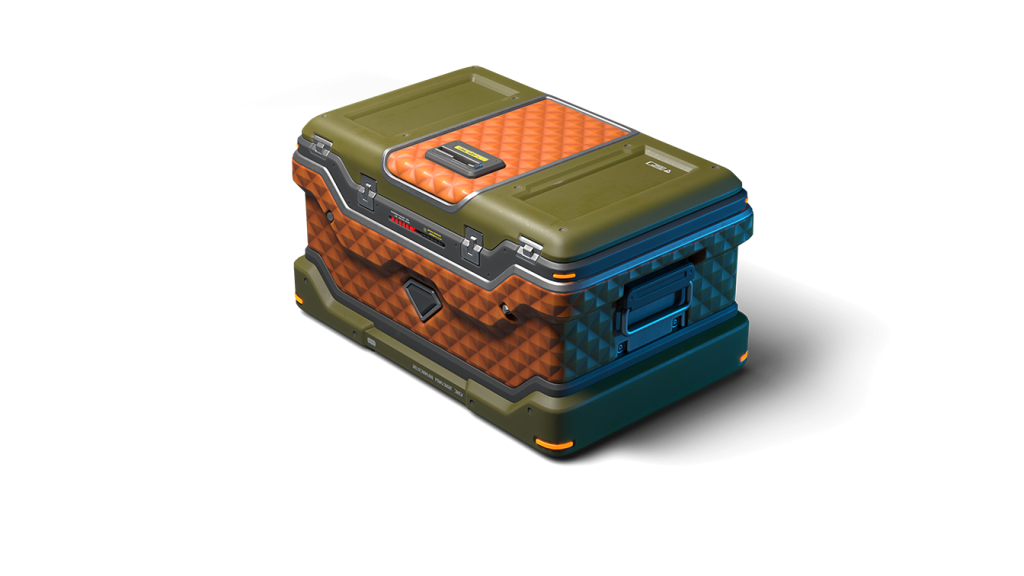
Treat yourself with the updated content of Epic Containers!
- SKIN Railgun UT
- SKIN Ares XT
- Railgun’s “Round Destabilization” augment
- Railgun’s “«Death Herald» Compulsator” augment
- Railgun’s “Excelsior” augment
- Ares’ “Excelsior” augment
- Ares’ “Grenadier” augment
- And everything you can get from Common Containers
Special Missions
We have prepared a plethora of exciting missions that will make the event more exciting!
Your progress in completing missions is only counted from the moment you first enter the “Missions” screen after the event begins.
Missions follow the Encore system, with the second set of missions appearing only after the first set is completed.
SPECIAL
Part 1. January 16th — January 23rd
Part 2. January 23rd — January 30th
Part 3. January 30th — February 6th
ICE BREATH
TASK
Finish 2 battles in the festive mode.
REWARD
×3
EPIC KEY
EPIC KEY
MIND-BLOWING PARTY
TASK
Finish 2 battles in the festive mode.
REWARD
×3
EPIC KEY
EPIC KEY
STEP BY STEP
TASK
Finish 2 battles in the festive mode.
REWARD
×3
EPIC KEY
EPIC KEY
SET 1
January 16th — February 6th
SUPERMISSION: NORTHERN PATH. PART 1
TASK
Complete «Come in! Part 1», «Good Reputation. Part 1», «Choice Without a Choice. Part 1», «Frostbite. Part 1», «Cold-Hearted. Part 1», «Freezer. Part 1», «Warm Place», «Ice Shield», «Permafrost», «Shards» and «Ice Stash» missions.
REWARD
×5
EPIC KEY
EPIC KEY
×1
RARE KEY
RARE KEY
×1000
EXPERIENCE POINTS
EXPERIENCE POINTS
COME IN! PART 1
TASK
Enter the game at least once.
REWARD
×1
COMMON KEY
COMMON KEY
×100
EXPERIENCE POINTS
EXPERIENCE POINTS
GOOD REPUTATION. PART 1
TASK
Earn 5000 reputation points in matchmaking battles.
REWARD
×1
COMMON KEY
COMMON KEY
×100
EXPERIENCE POINTS
EXPERIENCE POINTS
CHOICE WITHOUT A CHOICE. PART 1
TASK
Earn 3000 reputation points in Quick Battle mode in matchmaking battles.
REWARD
×1
COMMON KEY
COMMON KEY
×100
EXPERIENCE POINTS
EXPERIENCE POINTS
FROSTBITE. PART 1
TASK
Finish 10 battles in matchmaking battles.
REWARD
×1
COMMON KEY
COMMON KEY
×100
EXPERIENCE POINTS
EXPERIENCE POINTS
COLD-HEARTED. PART 1
TASK
Be in the winning team of 2 battles in matchmaking battles.
REWARD
×1
COMMON KEY
COMMON KEY
×100
EXPERIENCE POINTS
EXPERIENCE POINTS
FREEZER. PART 1
TASK
Make any purchase in the game’s Shop.
REWARD
×1
COMMON KEY
COMMON KEY
×100
EXPERIENCE POINTS
EXPERIENCE POINTS
WARM PLACE
TASK
Earn 1000 reputation points in CP mode in matchmaking battles.
REWARD
×1
COMMON KEY
COMMON KEY
×100
EXPERIENCE POINTS
EXPERIENCE POINTS
ICE SHIELD
TASK
Use boosted armor 150 times in matchmaking battles.
REWARD
×1
COMMON KEY
COMMON KEY
×100
EXPERIENCE POINTS
EXPERIENCE POINTS
PERMAFROST
TASK
Earn 3000 experience points in matchmaking battles.
REWARD
×1
COMMON KEY
COMMON KEY
×100
EXPERIENCE POINTS
EXPERIENCE POINTS
SHARDS
TASK
Earn 4000 crystals in matchmaking battles.
REWARD
×1
COMMON KEY
COMMON KEY
×100
EXPERIENCE POINTS
EXPERIENCE POINTS
ICE STASH
TASK
Open 15 any Containers.
REWARD
×1
COMMON KEY
COMMON KEY
×100
EXPERIENCE POINTS
EXPERIENCE POINTS
SET 2
January 23rd — February 6th
SUPERMISSION: NORTHERN PATH. PART 2
TASK
Complete «Come in! Part 2», «Good Reputation. Part 2», «Choice Without a Choice. Part 2», «Frostbite. Part 2», «Cold-Hearted. Part 2», «Freezer. Part 2», «Snow Massacre», «Snow Trap», «North Star», «Snowstorm» and «Inevitability» missions.
REWARD
×5
EPIC KEY
EPIC KEY
×1
RARE KEY
RARE KEY
×1000
EXPERIENCE POINTS
EXPERIENCE POINTS
COME IN! PART 2
TASK
Enter the game at least once.
REWARD
×1
COMMON KEY
COMMON KEY
×100
EXPERIENCE POINTS
EXPERIENCE POINTS
GOOD REPUTATION. PART 2
TASK
Earn 5000 reputation points in matchmaking battles.
REWARD
×1
COMMON KEY
COMMON KEY
×100
EXPERIENCE POINTS
EXPERIENCE POINTS
CHOICE WITHOUT A CHOICE. PART 2
TASK
Earn 3000 reputation points in Quick Battle mode in matchmaking battles.
REWARD
×1
COMMON KEY
COMMON KEY
×100
EXPERIENCE POINTS
EXPERIENCE POINTS
FROSTBITE. PART 2
TASK
Finish 10 battles in matchmaking battles.
REWARD
×1
COMMON KEY
COMMON KEY
×100
EXPERIENCE POINTS
EXPERIENCE POINTS
COLD-HEARTED. PART 2
TASK
Be in the winning team of 2 battles in matchmaking battles.
REWARD
×1
COMMON KEY
COMMON KEY
×100
EXPERIENCE POINTS
EXPERIENCE POINTS
FREEZER. PART 2
TASK
Make any purchase in the game’s Shop.
REWARD
×1
COMMON KEY
COMMON KEY
×100
EXPERIENCE POINTS
EXPERIENCE POINTS
SNOW MASSACRE
TASK
Earn 1000 reputation points in TDM mode in matchmaking battles.
REWARD
×1
COMMON KEY
COMMON KEY
×100
EXPERIENCE POINTS
EXPERIENCE POINTS
SNOW TRAP
TASK
Use mines 150 times in matchmaking battles.
REWARD
×1
COMMON KEY
COMMON KEY
×100
EXPERIENCE POINTS
EXPERIENCE POINTS
NORTH STAR
TASK
Earn 45 stars in matchmaking battles.
REWARD
×1
COMMON KEY
COMMON KEY
×100
EXPERIENCE POINTS
EXPERIENCE POINTS
SNOWSTORM
TASK
Destroy 30 tanks in matchmaking battles.
REWARD
×1
COMMON KEY
COMMON KEY
×100
EXPERIENCE POINTS
EXPERIENCE POINTS
INEVITABILITY
TASK
Deal 100000 damage in matchmaking battles.
REWARD
×1
COMMON KEY
COMMON KEY
×100
EXPERIENCE POINTS
EXPERIENCE POINTS
SET 3
January 30th — February 6th
Supermission: Northern Path. Part 3
TASK
Complete «Come in! Part 3», «Good Reputation. Part 3», «Choice Without a Choice. Part 3», «Frostbite. Part 3», «Cold-Hearted. Part 3», «Freezer. Part 3», «Northern Flag», «Cold Treatment», «Preemptive Play», «Shock Freeze» and «Spread» missions.
REWARD
×5
EPIC KEY
EPIC KEY
×1
RARE KEY
RARE KEY
×1000
EXPERIENCE POINTS
EXPERIENCE POINTS
COME IN! PART 3
TASK
Enter the game at least once.
REWARD
×1
COMMON KEY
COMMON KEY
×100
EXPERIENCE POINTS
EXPERIENCE POINTS
GOOD REPUTATION. PART 3
TASK
Earn 5000 reputation points in matchmaking battles.
REWARD
×1
COMMON KEY
COMMON KEY
×100
EXPERIENCE POINTS
EXPERIENCE POINTS
CHOICE WITHOUT A CHOICE. PART 3
TASK
Earn 3000 reputation points in Quick Battle mode in matchmaking battles.
REWARD
×1
COMMON KEY
COMMON KEY
×100
EXPERIENCE POINTS
EXPERIENCE POINTS
FROSTBITE. PART 3
TASK
Finish 10 battles in matchmaking battles.
REWARD
×1
COMMON KEY
COMMON KEY
×100
EXPERIENCE POINTS
EXPERIENCE POINTS
COLD-HEARTED. PART 3
TASK
Be in the winning team of 2 battles in matchmaking battles.
REWARD
×1
COMMON KEY
COMMON KEY
×100
EXPERIENCE POINTS
EXPERIENCE POINTS
FREEZER. PART 3
TASK
Make any purchase in the game’s Shop.
REWARD
×1
COMMON KEY
COMMON KEY
×100
EXPERIENCE POINTS
EXPERIENCE POINTS
NORTHERN FLAG
TASK
Earn 1000 reputation points in CTF mode in matchmaking battles.
REWARD
×1
COMMON KEY
COMMON KEY
×100
EXPERIENCE POINTS
EXPERIENCE POINTS
COLD TREATMENT
TASK
Use repair kit 150 times in matchmaking battles.
REWARD
×1
COMMON KEY
COMMON KEY
×100
EXPERIENCE POINTS
EXPERIENCE POINTS
PREEMPTIVE PLAY
TASK
Destroy 1 tank using grenades in matchmaking battles.
REWARD
×1
COMMON KEY
COMMON KEY
×100
EXPERIENCE POINTS
EXPERIENCE POINTS
SHOCK FREEZE
TASK
Destroy 10 tanks using critical damage in matchmaking battles.
REWARD
×1
COMMON KEY
COMMON KEY
×100
EXPERIENCE POINTS
EXPERIENCE POINTS
SPREAD
TASK
Use any grenade 10 times in matchmaking battles.
REWARD
×1
COMMON KEY
COMMON KEY
×100
EXPERIENCE POINTS
EXPERIENCE POINTS
Advent Calendar
We are launching the festive advent calendar for you!
Attention! The Advent Calendar and its missions become available only after purchasing the “Advent Calendar” special offer.
After purchasing the “Advent Calendar” special offer, you will get access to:
- 5 standard missions
- 1 Supermission with unique rewards!
All you need to do is log into the game during the event and claim your gifts.
Task: Complete all “One More Day” missions that appear after January 16th.
Completing 5 standard missions will unlock the final Supermission.
Supermission
×1
Recruit Paint
×200
RUBIES
One more day
×12
EPIC KEY
×200
RUBIES
Elite Pass
The most luxurious pass is here! It will consist of 20 levels.
Your goal is to earn stars and unlock new levels, and for each level you reach, you will receive additional prizes!
In order to complete the whole pass and reach the main prize, you will need to earn 1000 stars.

Elite Pass
All stars earned during the event will be counted. Progress begins with the start of the event. Stars earned before the purchase of the «Elite Pass» will also be counted. The «Elite Pass» itself is required to claim the prizes. By purchasing it, you will be able to claim all the unlocked prizes to your Garage!
The Main Prizes are Legendary Key ×1 and the “Excelsior” augment for Hornet!
The price of this «Elite Pass» is 2300 Rubies.
Festive Decorations
- Festive paint on cargo drones
- Festive paint
- Festive Gold Box drop zone skin
- Special loading screen
- Festive billboards
Great mood and good luck to everyone!
«Tanki and The Snow Trap» mini-game 2025
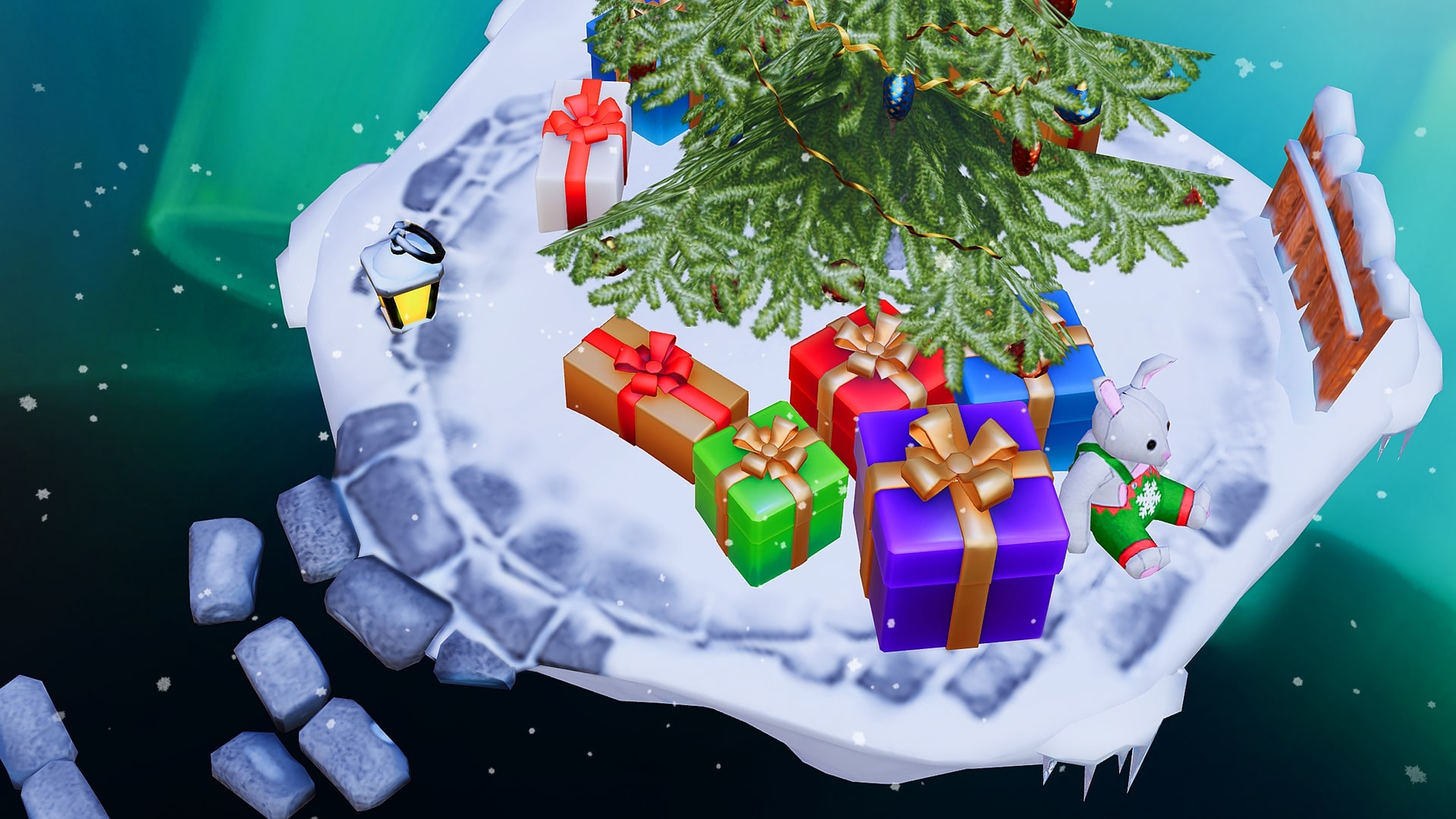
In honor of the New Year, we’re launching the “Tanki and The Snow Trap” mini-game.
Get ready to join us on the journey to conquer the unexplored winter territories! Put on warm clothes, get into a cozy mood, and go travelling for valuable prizes!
From December 26th 2 AM UTC until January 22nd 2 AM UTC, we will launch the “Tanki and The Snow Trap” mini-game on a special site. You will conquer drifting ice floes and receive special prizes!
To get your tank to move between those ice floes, your tank will need fuel — Gingerbread.
Gingerbreads

Gingerbreads
These are the special event currency. You can track the number of your units of Gingerbread reserves on the mini-game interface.
Here are the ways that you can get Gingerbread:
- Completing special event missions — 12 units of Gingerbread
- From special Gold Boxes — 1 unit of Gingerbread
- Completion of Contracts
Contracts

Contract
A Contract is a mission that requires earning reputation points in Matchmaking battles.
Contracts can be purchased from December 26th, 2 AM UTC until January 21st, 2 AM UTC in the Shop for Crystals or Rubies.
After the purchase, open the “Contracts” section in the “Missions” menu and activate the contract.
There are 3 types of contracts in the event:
Bronze Contract

Condition: Earn 5000 reputation points in battles
Reward: Gingerbread х2; Bronze Contract х1
One-time purchase
Reward: Gingerbread х2; Bronze Contract х1
One-time purchase
Checkpoint #1 REWARD
- Time to complete: until January 21st, 2 AM UTC
- Time to collect the prize: until January 21st, 2 AM UTC
- Alternative reward if not completed in time: Crystals х1000
- Alternative reward if the reward is not collected in time: Crystals х1000
- Early completion price: Rubies 300-1
Silver Contract

- Time to complete: until January 21st, 2 AM UTC
- Time to collect the prize: until January 21st, 2 AM UTC
- Alternative reward if not completed in time: Crystals х49900
- Alternative reward if the reward is not collected in time: Crystals х49900
- Early completion price: Rubies 300-1
Golden Contract
- Time to complete: until January 21st, 2 AM UTC
- Time to collect the prize: until January 21st, 2 AM UTC
- Alternative reward if not completed in time: Rubies х290
- Alternative reward if the reward is not collected in time: Rubies х290
- Early completion price: Rubies 1500-1
IMPORTANT information:
- You can only have 1 contract activated at one time.
- If you have already completed the contract requirement and earned 5000 reputation points, the reward should be claimed immediately, otherwise a new contract cannot be activated.
- At the end of the event, if you completed a contract, but didn’t claim its reward, you can receive an alternative reward depending on the contract’s price.
- After January 21st, all contracts will become unavailable and expire. They will be marked with a red color.
Before completing a contract, DON’T FORGET to activate it.
How to Start
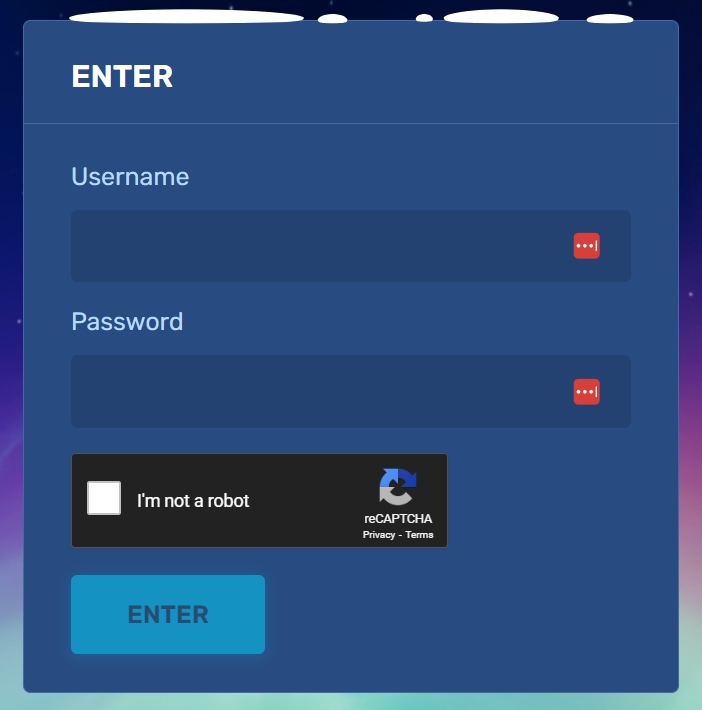
Log in
To start your journey, you need to log in to the mini-game website, using the nickname and the password of your in-game account.
By the way, the mini-game site will now be available on mobile devices!
If you use Facebook or Google to log in to your account, you will need to contact our customer service to get a password for your account to enter the website.
Ice Floes
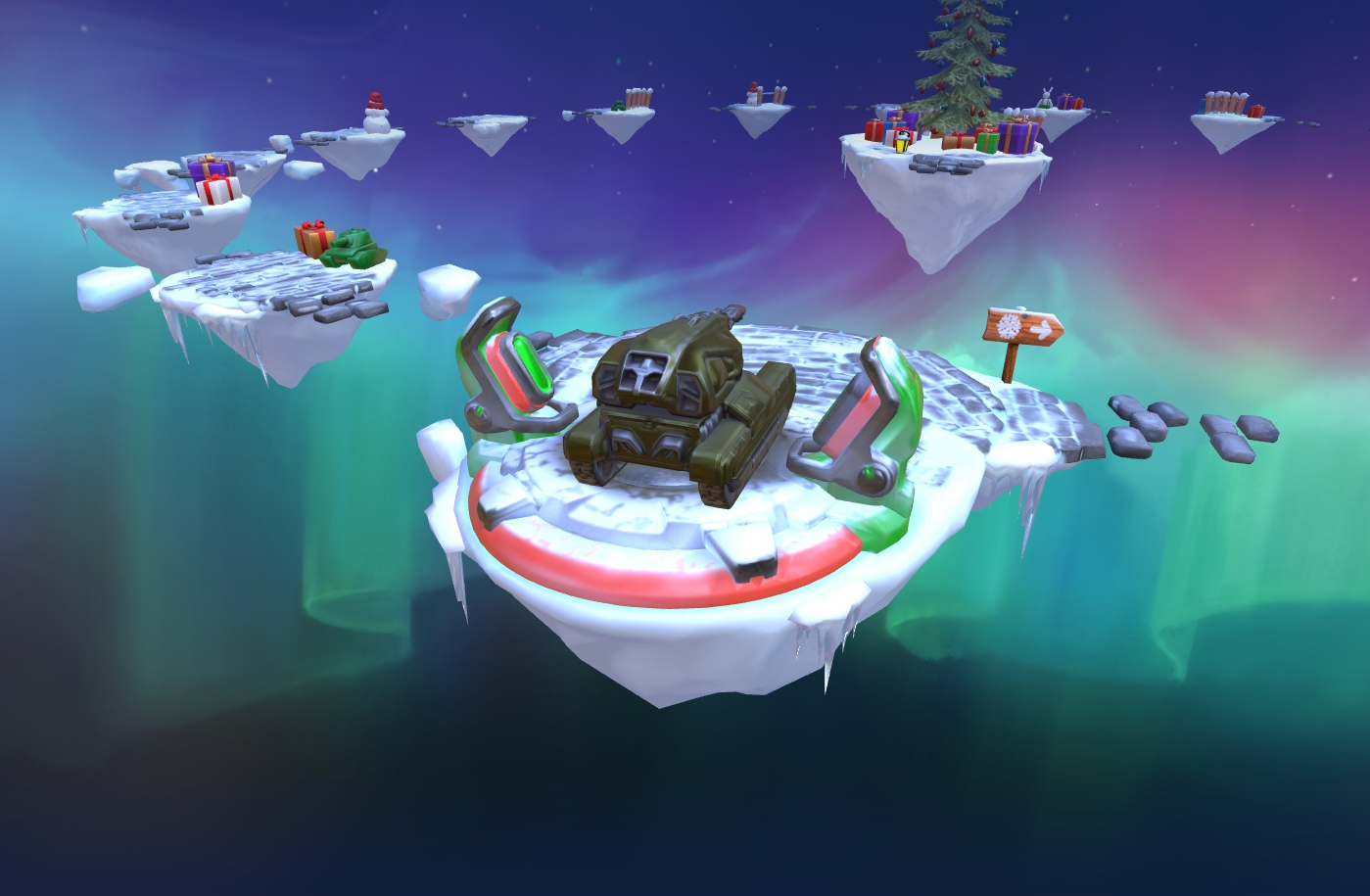
Ice Floes
The mini-game map consists of ice floes, and on each of them, a surprise awaits you.
But as you know, there are good and bad surprises:
- Let’s start with the good ones, where you will get: Common Keys, Rare Keys, Epic Keys, an augment for Magnum, ICE skins, and special Grenades. When you conquer an ice floe, a reward is sent to a special storage at the Checkpoint, and is not immediately credited to your in-game account.
- For each move, you need to spend 10 units of Gingerbread. You can move one or two floes forward.
- There will be special “snow traps” on your way. By entering them, you have a 50% chance to either move two steps back or stay in the same place.
Don’t worry, even if luck is not on your side and you get pushed back, you can receive a reward for each ice floe that you pass twice on your way forward.
Checkpoints
A player starts their journey from the 1st Checkpoint. The mini-game ends when you reach the 7th Checkpoint.
After completing a whole lap, the player reaches a checkpoint. There is a special vault on it to store all the prizes that the player received from the ice floes on that lap. When visiting a checkpoint, the player can transfer the prizes from the vault to their in-game account.
Moreover, whenever you reach a checkpoint, you will receive even more unique rewards in your vault.
Prizes
Checkpoint 1

PAINT
Viscum
Bronze Contract
Checkpoint 2

×100
Snowball grenade ×100
Checkpoint 3

×10
Tsar grenade ×10
Checkpoint 4

GAUSS
IC
Checkpoint 5
hammer
IC
Checkpoint 6

magnum
Carronade
Checkpoint 7

magnum
IC

magnum Carronade
Increases the turret’s rate of fire at the cost of reduced damage per shot.
Shells used by this version of Magnum feature a smaller explosive charge, saving a significant amount of weight. This results in a higher rate of fire, smoother recoil, faster aiming, and a much higher density of fire. The “Carronade” performs noticeably better at close range compared to the standard Magnum.
On the other hand, firing the “Carronade” at maximum range is more demanding and requires greater skill from the shooter.
Special missions with Gingerbreads
Want to get a lot of gingerbreads? Then these missions are for you!
LIGHT FROST
TASK
Destroy 100 tanks using light hulls (Wasp, Hornet, Hopper) in any matchmaking battles.
REWARD
×1
EPIC KEY
EPIC KEY

×12
Gingerbread
FREEZING RAIN
TASK
Destroy 100 tanks using medium hulls (Hunter, Viking, Crusader, Paladin, Dictator) in any matchmaking battles.
REWARD
×1
EPIC KEY
EPIC KEY
×12
Gingerbread
SNOWSTORM
TASK
Destroy 100 tanks using heavy hulls (Ares, Titan, Mammoth) in any matchmaking battles.
REWARD
×1
EPIC KEY
EPIC KEY
×12
Gingerbread
NORTH WIND
TASK
Destroy 100 tanks using melee-range turrets (Firebird, Freeze, Isida, Tesla, Hammer) in any matchmaking battles.
REWARD
×1
EPIC KEY
EPIC KEY
×12
Gingerbread
RIGOR
TASK
Destroy 100 tanks using medium-range turrets (Smoky, Striker, Vulcan, Thunder, Twins, Ricochet) in any matchmaking battles.
REWARD
×1
EPIC KEY
EPIC KEY
×12
Gingerbread
ICE SHARDS
TASK
Destroy 100 tanks using long-range turrets (Shaft, Gauss, Magnum, Railgun, Scorpion) in any matchmaking battles.
REWARD
×1
EPIC KEY
EPIC KEY
×12
Gingerbread
Good luck in conquering new heights!
Magnum IC

The frosty lineup of skins keeps growing!
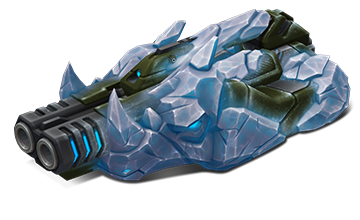
The IC skin series is welcoming Magnum! This skin embodies icy power and cold-blooded precision: its shapes are forged from ice crystals, sharp edges resemble frozen armor, and the cold blue glow highlights its deadly nature. Magnum IC looks like it was created in the heart of eternal permafrost, and every shot it fires carries a piercing chill.

Magnum IC
An IC series turret embodies the harsh power of ice. Covered in a thick layer of Antarctic ice, it resembles a dangerous crystalline beast, its form seemingly carved from permafrost. Every shot resonates with merciless cold, leaving an icy trail in its wake and turning the battlefield into a frozen wasteland.
This turret is made for those ready to face the frost head-on and answer their enemies with cold fury.
How to get it
You can obtain the Magnum IC skin at the 7th and final checkpoint of the «Tanki and The Snow Trap» mini-game 2025.
This skin will be a true highlight of your collection and another bonus to your New Year’s mood.
Good luck in battles!
Tanki Online V-LOG: Episode 540
In today’s episode, we will be announcing the new mini-game. We’ll also be giving updated on Classic and wishing you Merry Christmas and Happy New Year!
Tanki Classic mass test

We are officially launching the “Tanki Classic” mass test!
During the test, you will be able to get onto separate “Tanki Classic” test servers, if you have purchased one of the early access special offers.
How to get there?
You can get onto “Tanki Classic” only through the announcement window in the main game lobby.
Attention! There are no other ways to get onto the game. Other sites you see on the Internet are scams and are made to steal your account details. You do not need to enter your password to log into the Tanki Classic test servers. If someone asks for your password to access Tanki Classic, it is definitely a scam. Be careful.
You will only have access if you are an early access participant.
How to get Early Access?
The special Early Access offers for “Tanki Classic” were only available for a limited time. With the start of the mass testing phase, we are bringing these special offers back on sale. This is your chance to become a part of the legendary “Tanki Classic” project ahead of everyone else!
Early Access offers are available from rank 8.
Personalized
×1000
(TO) Rubies

(TO) Bronze medal Tanki Classic

(TC) Nickname reservation
Nostalgia
×3000
(TO) Rubies

(TO) SILVER medal Tanki Classic
(TC) Nickname reservation
(TC) VETERAN PAINT
(TC) EARLY ACCESS

(TC) Voting option
Old School
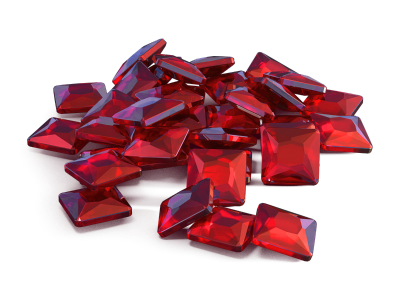
×10000
(TO) Rubies

(TO) Gold medal Tanki Classic
(TC) Nickname reservation
(TC) VETERAN PAINT
(TC) EARLY ACCESS
(TC) Voting option
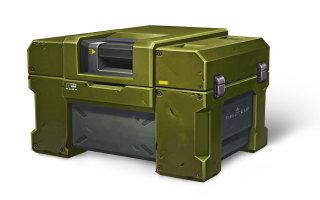
×200
(TC) CONTAINERS
What is there in the game?
This is a test version of the game. It is possible to encounter bugs, issues, unfinished features, and anomalies.
During the test, we will restart the game several times and even temporarily pause the testing process.
We will also wipe the test server database several times, which will reset all your progress.
For testing Tanki Classic, we use new server infrastructure. This may cause unstable server performance during the first weeks of testing. We will be configuring and fixing everything.
Is this early access already?
No. Early access will be announced separately, 2 weeks before the game is released. You will be able to get access to the game earlier than anybody else and progress your account earlier than others.
What is the “Development Plans” section on the Tanki Classic website?
Alongside the launch of Tanki Classic testing, we are adding a special “Development Plans” section to the project’s website. From now on, this section will be the primary, first-source of information on the development of the Tanki Classic project.
There, we will announce the key development areas of the project earlier than anywhere else.
Please note: the presented plans reflect our current goals and may be adjusted based on your feedback and voting results.
In the future, we will launch the promised polls for the game mechanics. You, the players, will define the future of “Tanki Classic!”
Feedback can be left on the forum topic of this news.
Recommended Posts